

Last change: 20 October 2026, for Vois Studio 2.6.0.
Select a Mastering Profile when you export from Vois Studio. YouTube Video has a target of -14 LUFS, Apple Podcasts and Spotify Podcasts -16, ACX Audiobook -20, and High Quality -19 as a 24-bit WAV. When Loudness Normalization is on, exports are in 0.3 LU of the target if the audio lets them. If not, the export tells you.
This is chapter 13 of the full Vois Studio guide.
Spotify, YouTube, podcast apps, and audiobook distributors do not all use the same loudness or file type. Thus, a correct export starts with the destination. One general "high quality" export cannot agree with the rules of all of them.
Which export profile do you select?
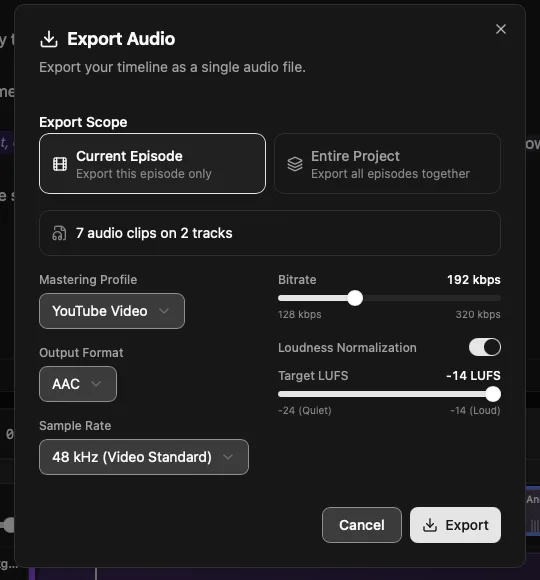
Select Export on the timeline. Then open Mastering Profile. Each export profile sets a loudness target, a true peak limit, and the file format:
| Mastering Profile | Loudness target | Peak limit | Format of the file |
|---|---|---|---|
| YouTube Video | -14 LUFS | -1 dBTP | AAC, 192 kbps, 48 kHz, stereo |
| Apple Podcasts | -16 LUFS | -1 dBTP | AAC, 128 kbps, 48 kHz, stereo |
| Spotify Podcasts | -16 LUFS | -2 dBTP | MP3, 192 kbps, 44.1 kHz, stereo |
| ACX Audiobook | -20 LUFS | -3 dBTP maximum | MP3, 192 kbps, 44.1 kHz |
| High Quality | -19 LUFS | -1 dBTP | WAV, 24-bit, 48 kHz, stereo |
| Custom | Your selection | n/a | Your selection (refer to the section about Custom) |
Since version 2.5.1, each platform export profile makes a file in the format, sample rate, and bitrate of that export profile. Export AAC audio as an .m4a file. Vois Studio does not let you keep AAC audio with a .wav name.
The export profiles use these targets. Platforms change their rules. Thus, before you publish, read the rules of the destination at that time. If your audio has many tracks and effects, do a test upload that only you can see.
About ACX: the ACX Audiobook export profile gives only the loudness and peak targets. It does not make AI narration from external tools permitted as a standard ACX upload. Before you select that destination, read ACX audiobook requirements and AI narration.

About LUFS
LUFS (Loudness Units relative to Full Scale) gives the loudness that a person hears along the full length of the audio. It does not give only the highest peak. When your episode agrees with a target, its loudness is almost the same as the loudness of the video or podcast before it. LU is the unit of difference: a file at -14.2 LUFS is 0.2 LU from a -14 target.
The peak limit, in dBTP (decibels true peak), sets a maximum for the highest point in the audio. Thus a platform does not cut the peaks when it changes the format. For more information, read LUFS and audio mastering.
How near to the target is the export?
When Loudness Normalization is on, Vois Studio 2.5.1 and all subsequent versions are 0.3 LU or less from the loudness that you selected. They also keep the export file below the peak limit. Before version 2.5.1, exports with Loudness Normalization had a loudness 2.5 to 3.3 LU less than the target.
You can also set the loudness level. When Loudness Normalization is on, the Target LUFS slider goes from -24 (Quiet) to -14 (Loud) in 1 LU steps. When you move the slider, the Mastering Profile changes to Custom.
When the audio cannot increase to the target
For some audio, the peaks go above the limit when the loudness increases. Then Vois Studio keeps the peak limit, and the export tells you that its loudness is less than the target. Vois Studio does not let the peaks go above the limit to get the target number.
Listen to the audio to find the cause. One part with very high loudness (a laugh, a sound effect, or a music hit) can keep the loudness of the full file low. Decrease the volume of that clip on the timeline, or trim the clip. Then export again.
How do you set the format with Custom?
Select Custom in Mastering Profile. Then set these items:
| Item | Alternatives |
|---|---|
| Output Format | MP3, WAV, FLAC or AAC |
| Sample Rate | 44.1 kHz (CD Quality), 48 kHz (Video Standard), 96 kHz (High Resolution) |
| Bitrate (MP3, AAC) | Slider from 128 to 320 kbps, in the limits of the format and sample rate |
| Bit Depth (WAV, FLAC) | WAV: 16-bit, 24-bit or 32-bit float. FLAC: 16-bit or 24-bit |
The dialog shows only the values that the format can use together. When a change of format changes one of the values, the dialog tells you. For example, MP3 at 96 kHz becomes 48 kHz. Since version 2.5.1, WAV and FLAC files use the bit depth that you select. MP3 and AAC files use the bitrate that you select.

Causes of a stopped export
- Missing audio. If a line has no audio, the export stops and shows the name of the line. A button lets you go to that line. The export does not put a space with no sound into the file. Generate the line again with Generate Audio. Then export again.
- Missing files or files that Vois Studio cannot read. You moved or removed the file of a music, effect, or imported audio clip. The export then shows the file name. Thus you can put the file back or remove the clip. If the file is there but Vois Studio cannot read it, the export shows "Can't read file".
- Audio that is too short. On all plans, an export must have a minimum of 5 seconds of audio. Add more text or put lines together. Then export again.
- You canceled the export. Since version 2.5.3, Cancel stops an export in approximately one second. This is correct during all export steps: audio decode, last file encode, watermark, and the last file test. Vois Studio does not keep a file.
You can export long projects. Since version 2.5.3, Vois Studio exports a full audiobook as one file. It exports a WAV file larger than 4 GB as RF64, the standard format for WAV files of that dimension.
About the watermark
Each Vois Studio export has a watermark in the audio and identification tags in the file metadata. You cannot hear the watermark. It shows that you made the file with Vois Studio. Vois Studio adds it on all plans.
Which exports does your plan include?
The Free plan includes 10 exports each month of English audio that you make with Sonic. This number goes back to 10 on the 1st day of each month (UTC). Exports from other engines or in other languages use export credits that you buy. Exports after these 10 also use export credits. Pro includes exports with no limit. For more information, read about export credits and prices.
How do you examine the file before you publish it?
- Export with the export profile that agrees with the destination.
- Listen to the file in the completed video or in a podcast player.
- For an audiobook, listen to some chapter changes on headphones.
- Measure the integrated loudness and true peak with a loudness meter.
- Compare these values with the targets of the export profile.
- If each destination has a different target, export one file for each destination.
- Put the destination name in each filename. Thus, you do not upload an audiobook master to YouTube in error.
A meter gives data for your decision. You must also listen to the file.
Related
- The full Vois Studio 2.6 guide
- The Vois Studio timeline, step by step
- Backups in Vois Studio
- LUFS and audio mastering
- Voiceover files for clients
Select the export profile for the destination of the file. Export one time. Then listen to the file at its destination before you publish it.
The Vois Team