
Last updated 20 October 2026 for Vois Studio 2.6.0.
To back up Vois Studio, open Settings > Backup > Create a backup. Choose whether to include generated audio, then set a passphrase of at least 12 characters. You get one encrypted .voisbak file. On any Mac or Windows computer, Restore from a backup brings it back, replacing what's there and keeping a rollback copy first.
Added 20 October 2026: this is chapter 14 of our complete Vois Studio walkthrough.
What's in a backup, and what isn't?
| In the backup | Not in the backup |
|---|---|
| Projects and scripts | Your licence |
| Timelines and speakers | Credentials and API keys |
| Your cloned and designed voices | Settings tied to one computer |
| Audio library files | Downloaded voice engines |
| Generated takes, if Include generated audio is on |
Licences, credentials and API keys are left out on purpose, so after a restore on a new computer you activate your licence there. Voice engines aren't packed either; download the ones you use on the new computer from Voice Settings.
How do I create a backup?
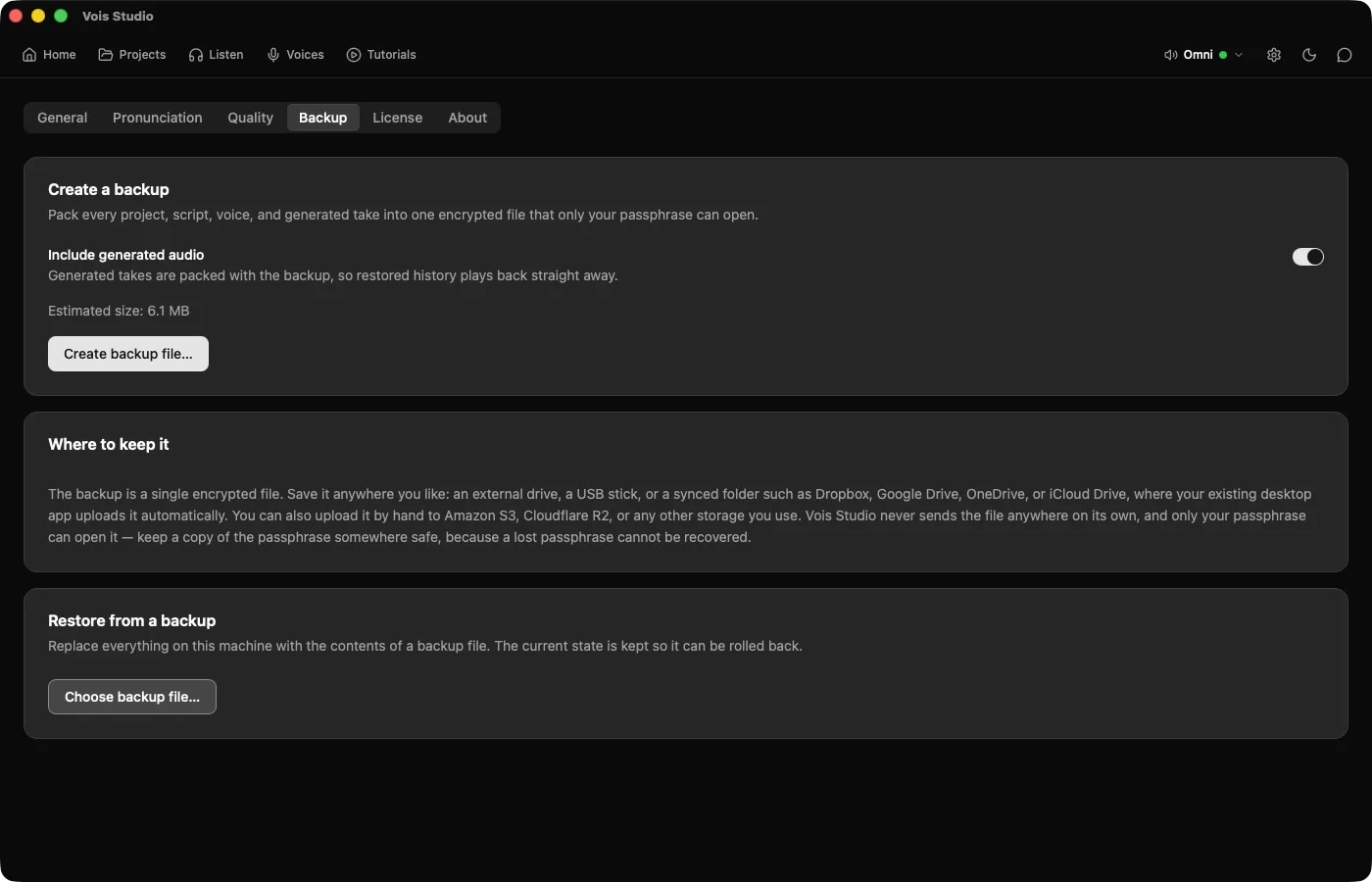
- Open Settings > Backup. The first card is Create a backup.
- Decide on Include generated audio. On: your takes are packed, so restored projects play straight away. Off: the file is much smaller, but lines need generating again after a restore.
- Click Create backup file… and choose where to save it.
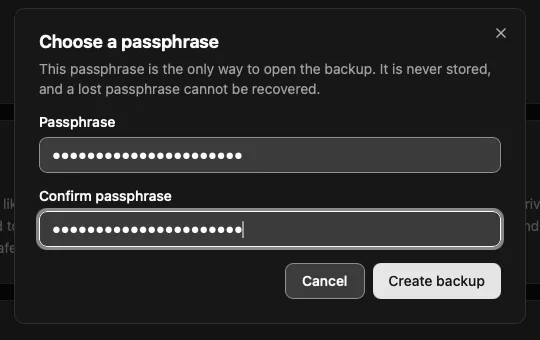

- In Choose a passphrase, type it in Passphrase and again in Confirm passphrase. It must be at least 12 characters.
- Click Create backup. Progress shows as Preparing, Copying your library, Writing the backup file and Verifying the backup. You can Cancel while it runs.

Where should I keep the file?
Anywhere you like: an external drive, a USB stick, or a synced folder such as Dropbox, Google Drive, OneDrive or iCloud Drive, where that service's desktop app uploads it. You can also upload it yourself to Amazon S3, Cloudflare R2 or other storage. Vois Studio never sends the file anywhere on its own.
The file is encrypted with Argon2id and AES-256-GCM, so only your passphrase opens it.
How do I restore a backup?
- Open Settings > Backup > Restore from a backup.
- Click Choose backup file… and pick the
.voisbakfile. Vois Studio shows when it was Created, the Vois Studio version and Platform that made it, and its Size. - Enter the Passphrase and click Restore.
- Confirm Replace everything on this machine? with Replace and restore.
- When Restore is ready appears, click Restart now. Nothing on the computer has changed until Vois Studio restarts and swaps the restored files into place. Changed your mind? Click Cancel restore instead.
Vois Studio checks the whole file before replacing anything, finishes the restore across the restart, and keeps your current state as a rollback copy in case anything fails.
If you pick a file that isn't a backup, Vois Studio says "That is not a Vois Studio backup file" and changes nothing. If it can't open a real backup, it tells you the step that fixes it, such as moving the file to a folder on this computer.
Update, 20 October 2026: what changed about restore in 2.6.0?
Two fixes in Vois Studio 2.6.0, released 20 October 2026:
- Generated audio is always replaced. Restoring now replaces this computer's generated audio even when the backup has none, for example one made with Include generated audio off. Before, this computer's takes stayed in place after the restore. They're still kept in the restore's rollback copy.
- Older backups restore cleanly. Restoring a backup made with Vois Studio 2.4 or earlier no longer leaves that version's outdated voice files behind. Your voices' recordings are kept, and each voice is ready again the next time you use it.

Can I move from Mac to Windows?
Yes. Since 2.5.2, a backup made on a Mac restores on Windows, and a backup made on Windows restores on a Mac. To move to a new computer:
- On the old computer, create a backup with Include generated audio on, and copy the file across.
- Install Vois Studio on the new computer and activate your licence. If Vois Studio needs you to confirm the new computer by email, it shows which inbox to check; select Confirm this device in that email and activation finishes on its own.
- Restore the backup and restart.
- Download the voice engines you use from Voice Settings, then open a project and play it.
If you're moving off the old computer for good, deactivate the licence there in Settings > License.
What if I forget the passphrase?
The backup can't be opened. The passphrase is never stored, and a lost passphrase can't be recovered, by you or by us. Keep a copy somewhere safe when you create the backup, and make a fresh backup with a new passphrase if you lose it while the original computer still works.
Update, 20 October 2026: bought voices missing after a move?
Premium voices you buy come back through your account, not the backup file. The Voice Store, coming soon, is a store inside Vois Studio where you can buy extra premium voices once and keep them; partner offers can include them too. Your plan's included voices stay included either way. Since Vois Studio 2.6.0 (20 October 2026), voices bought on another computer or through a partner offer show up the next time you open Vois Studio, or within a few minutes when you switch back to it.
If they're still missing, the Library shows "Confirm your email to use the voices you bought". Bought voices need this one-time confirmation, wherever you bought them. Click Confirm email, enter the 6-digit code we send to the email on your licence under Verification code, and click Confirm. You'll see "Email confirmed. Your voices are in the Library." Vois Studio asks for this once.
Related
- The complete Vois Studio 2.6 guide
- The Vois Studio timeline, step by step
- Export profiles and loudness for YouTube, podcasts and ACX
- Privacy-first voice tools
Make your first backup today, then copy the file somewhere that isn't this computer.
The Vois Team