
Last updated 20 October 2026 for Vois Studio 2.6.0.
Twelve Vois Studio features most people miss: project templates, ten example scripts, script import, double-click to jump the timeline, ruler keys, Shift+F10 for the clip menu, the L key to lock a line, Listen, pronunciation CSV, Model quality, Cmd+S to save and Cmd+plus or minus to zoom. Each takes one or two clicks once you know where it is.
Added 20 October 2026: this is chapter 15 of our complete Vois Studio walkthrough.
On Windows, read Ctrl wherever this post says Cmd.
1. How do I start a project from a template?
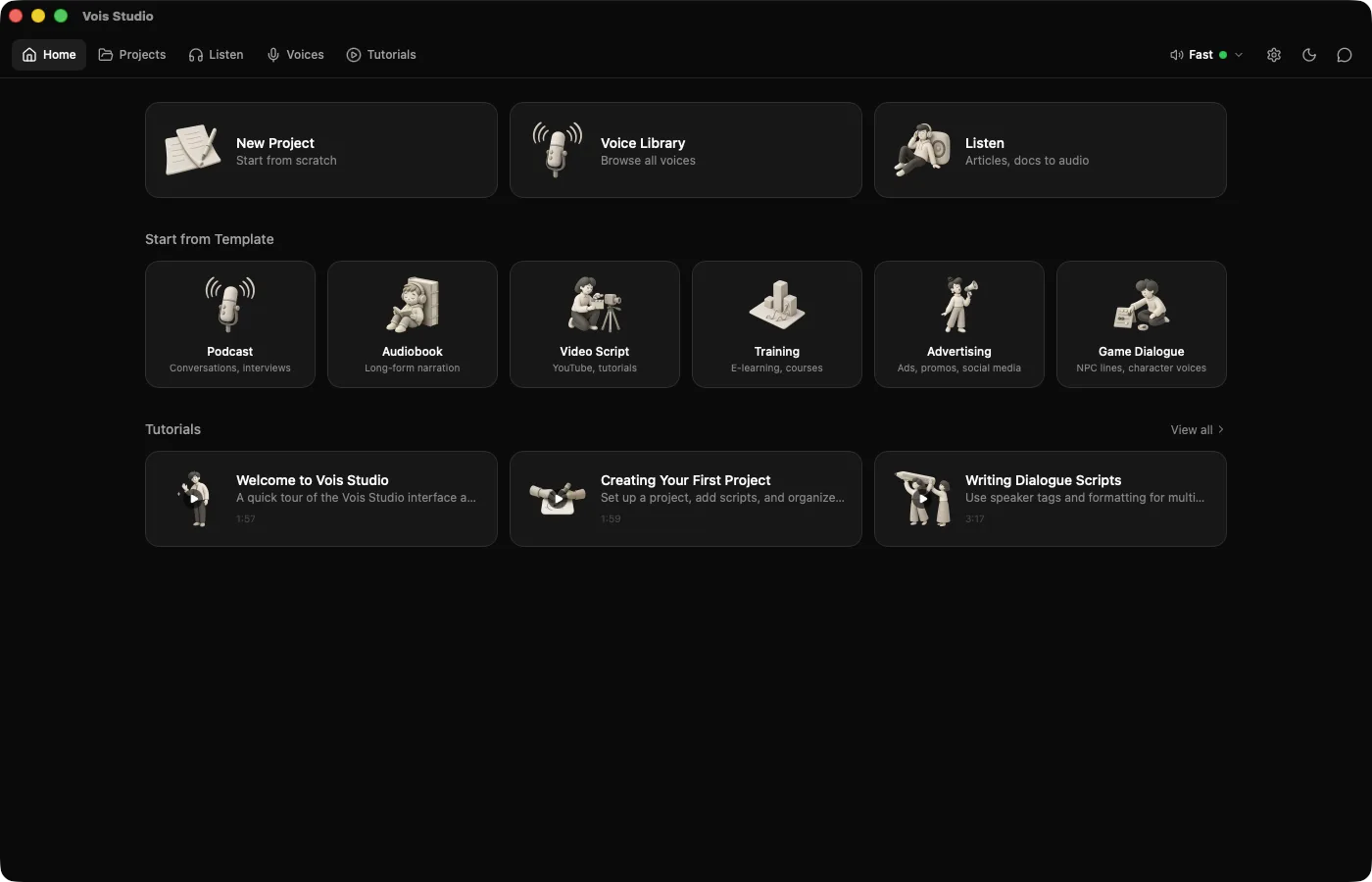
On Home, under Start from Template, pick one of six: Podcast (conversations, interviews), Audiobook (long-form narration), Video Script (YouTube, tutorials), Training (e-learning, courses), Advertising (ads, promos, social media) or Game Dialogue (NPC lines, character voices). The new project opens with a matching sample script to edit.
Free includes one project; at that limit Vois Studio explains it and offers Upgrade.
2. How do I get an example script?
Open an empty script and click Insert example script. The menu offers ten samples in five groups: Podcasts & Interviews, YouTube & Video, Audiobooks & Narration, Documentaries, and Apps & Games, from a podcast interview to a meditation app. Useful for hearing what an engine does before you write a word.
3. How do I import a script I wrote elsewhere?
In a project, click Script actions (the three dots) and choose:
- Import Script... to bring in one Markdown (
.md) or text (.txt) file. It replaces the current script, so Vois Studio asks you to confirm with Replace Script. - Import All Scripts... to pick several files at once. Each becomes a new script in the project.
The same menu has Export Script... and Export All Scripts..., which save Markdown files.
4. How do I jump from the script to the timeline?
Double-click any script text. The timeline playhead jumps to that line's clip. It works the other way too: clicking a clip takes you to its line in the script.
5. How do I move the playhead from the keyboard?
Click the timeline ruler to focus it, then:
| Key | Moves the playhead |
|---|---|
| Left or Right arrow | 1 second |
| Shift + arrow | 5 seconds |
| Home | To the start |
| End | To the end |
6. How do I open the clip menu without a mouse?
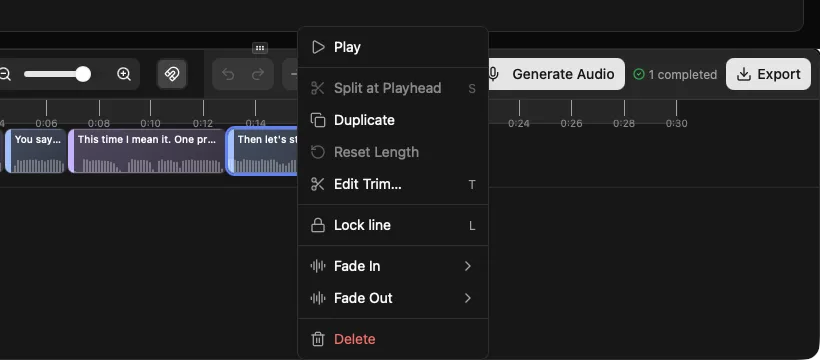
Focus a clip (Tab to it or click it) and press Shift+F10. The clip menu opens at the clip, as a right-click would: Play, Split at Playhead, Duplicate, Reset Length, Edit Trim…, Fade In, Fade Out and Delete, plus Lock line (and Takes, once there's an earlier take) on voice lines.
7. How do I lock a line with one key?
Click a line's clip and press L. Generate Audio then keeps that take, and a small lock icon appears beside the line in the script. Press L again, or click the icon, to unlock. Locking is handy before you switch engines or rewrite nearby lines.
The other clip keys: P preview, S split at the playhead, T exact trim, Delete remove. Space plays the timeline and M mutes the selected track. Every timeline control: The Vois Studio timeline, step by step.

8. How do I turn a document or web page into audio?
Open Listen and click New item. Choose a tab:
- Text: paste text.
- File: choose a
.txt,.md,.pdf,.epubor.docxfile. - URL: paste a link to a web page.
Click Generate. While it plays, each word is underlined as it's spoken; click a word to jump there. Playback speed runs from 0.5x to 2x. Free includes three Listen items; Subscriber and Pro have no item limit. More: Listen Mode deep dive.
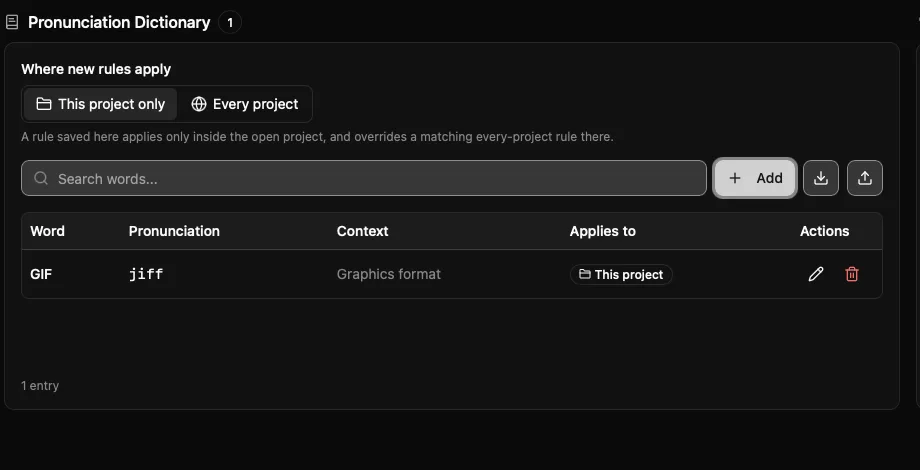
9. How do I share my pronunciation glossary?
Open Settings > Pronunciation:
- Export CSV saves every entry as
pronunciation_dictionary.csv. - Import CSV opens Import Pronunciations. Paste a header row and then one entry per line, as
word,pronunciation,context,language, for exampleGIF,jiff,Graphics format,en, and click Import.
That moves a whole glossary between computers or team members. How to write good entries: Pronunciation dictionary guide.
10. How do I choose model quality?
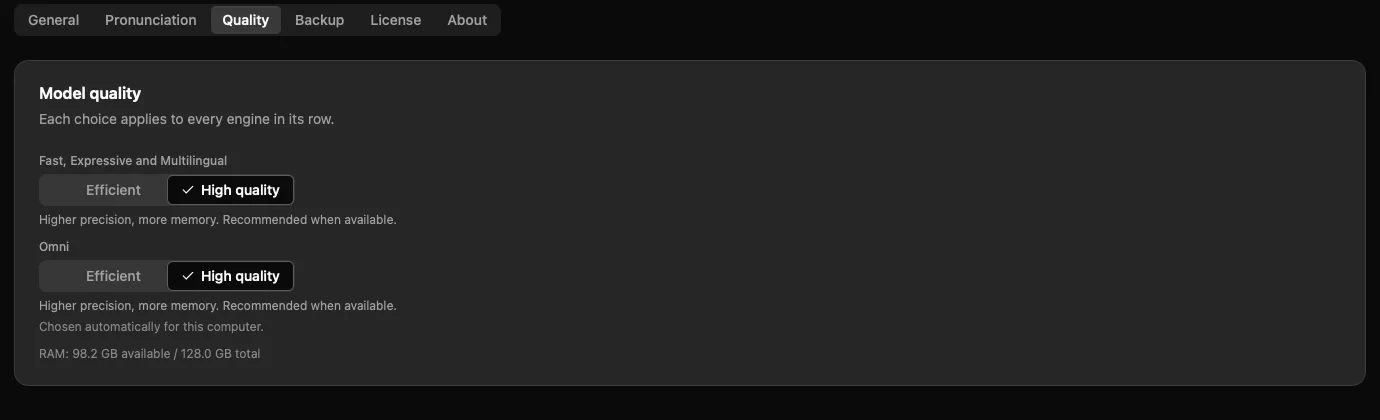
Open Settings > Quality > Model quality and choose:
- Efficient: uses less memory. Applies to new generations.
- High quality: higher precision, more memory. Needs at least 16 GB of RAM.
The panel shows this computer's memory. Use automatic lets Vois Studio pick for your computer.
11. How do I save quickly?
Press Cmd+S in a project to save it.
12. How do I make the whole app bigger or smaller?
Press Cmd+plus to zoom in, Cmd+minus to zoom out and Cmd+0 to reset. This zooms the whole Vois Studio window, which helps on a large monitor or a small laptop screen.
Anything else?
Vois Studio also works from the terminal: vois-cli generates audio on paid plans, and agent speech reads an AI agent's replies aloud on every plan. See Vois CLI and AI agent integration.
Related
- The complete Vois Studio 2.6 guide
- Vois CLI and AI agent integration
- The Vois Studio timeline, step by step
- Pronunciation dictionary guide
- Listen Mode deep dive
Try one of these a day this week, starting with the L key.
The Vois Team