
Last updated 20 October 2026 for Vois Studio 2.6.0.
To add AI-voiced audio tracks to a YouTube video, export one mixed, audio-only file per language that matches the video's length and timing, then add it in YouTube Studio under Languages > Add Language > Dub. Vois Studio voices each track in that language. YouTube offers the feature to channels with Advanced features.
This guide is part of our complete Vois Studio walkthrough. The chapter on speaking other languages starts here:
If you still need to adapt the script itself for each language, start with YouTube video localization in 10 languages. This post picks up once the words are ready and covers voicing and delivering the tracks.
What is YouTube multi-language audio?
It lets one video carry several audio tracks, one per language. According to YouTube Help (checked 20 October 2026):
- The track plays in the viewer's preferred language, based on their watch history, and viewers can switch language in the player settings.
- It isn't automatic dubbing. You upload a dub you made yourself.
- If an automatic dub already exists for a language, you delete it before uploading your own.
- Files must be audio-only, in a supported format, and "roughly the same length as your video".
- If the copyrighted content in a secondary track differs from the original audio, YouTube may remove the file.
The picture is shared by every language. That one fact shapes everything below.
Who can use it?
YouTube says multi-language audio "is currently available to creators with access to Advanced features" (YouTube Help, checked 20 October 2026). If your channel doesn't have them yet, see the last section for the separate-upload route.
On the Vois Studio side, exporting non-English audio depends on your plan. Paid plans export without limits. Free's 10 monthly exports cover English audio made with Sonic, so a Spanish or Japanese track on Free uses purchased export credits. Free is also for non-commercial use (pricing).

Which Vois Studio engine speaks my language?
| Engine | Languages | Voices it uses | Plans |
|---|---|---|---|
| Sonic | 31 | 10 built-in voices only | Every plan |
| Fast | 5: English, German, Spanish, Italian, Portuguese | Library, cloned, designed | Subscriber, Pro; try on Free |
| Expressive | English only | Library, cloned, designed | Subscriber, Pro; try on Free |
| Multilingual | 23 | Library, cloned, designed | Subscriber, Pro; try on Free |
| Craft | 10 | Any voice with a recording; no built-in voices | Pro; try on Free |
| Omni | 30 | Library, cloned, designed | Pro; try on Free |
For the common dub languages:
| Language | Engines that speak it |
|---|---|
| Spanish, Portuguese, German, Italian | Sonic, Fast, Multilingual, Craft, Omni |
| French | Sonic, Multilingual, Craft, Omni |
| Japanese, Korean, Russian | Sonic, Multilingual, Craft, Omni |
| Chinese | Multilingual, Craft, Omni |
| Hindi, Arabic, Turkish | Sonic, Multilingual, Omni |
| Indonesian, Vietnamese | Sonic, Omni |
The full language list for each engine is in Which Vois Studio voice engine should I use?.
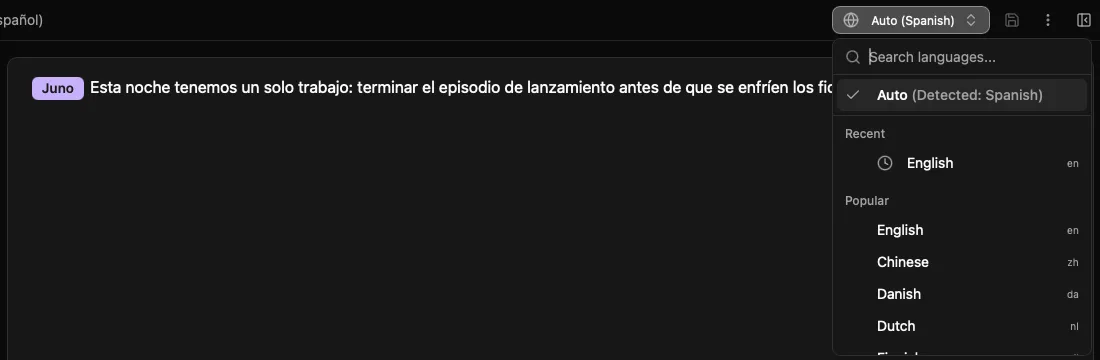
For a dub that keeps one narrator across languages, Multilingual is the usual choice: many library speakers have a recording in each of its 23 languages. Open Voices > Library, filter by the language, and press play on a card to hear that speaker's preview in it. If you want to direct the delivery in plain words, use Craft or Omni in a language they speak.
Should I use my cloned voice?
Only for the language it was recorded in. A cloned voice keeps the language and accent of its recording, so an English clone reading Spanish still sounds English. For natural delivery in another language, pick a library speaker recorded in that language, or clone from a recording of someone speaking it.
Vois Studio doesn't translate. It speaks the words you write, so each track starts from a script already written in that language. Have a fluent speaker review the words and listen to the finished track; our guide to QA in a language you don't speak covers how.
How do I keep the timing identical?
Every track plays over the same picture, so each line has to land where the original line lands.
- Bring in the original as a guide. On the timeline, click Add Media > Import File and add the original language's mix (MP3, WAV, OGG, FLAC, M4A or AAC).
- Generate the localized lines. Choose the engine in Voice Settings, write the line in the target language, and click Generate Audio.
- Line each clip up. Drag each localized clip so it starts where its original line starts, and finishes before the next cue.
- Rewrite long lines, don't rush them. German and French often run longer than English. Shorten the wording in that language and generate again rather than forcing a take to fit.
- Keep the same music and effects. Use the same music bed and sound effects in every track. It keeps the mix consistent and avoids the copyrighted-content mismatch YouTube warns about.
- Remove the guide. Delete the guide clip before you export, so only the new language is in the file.
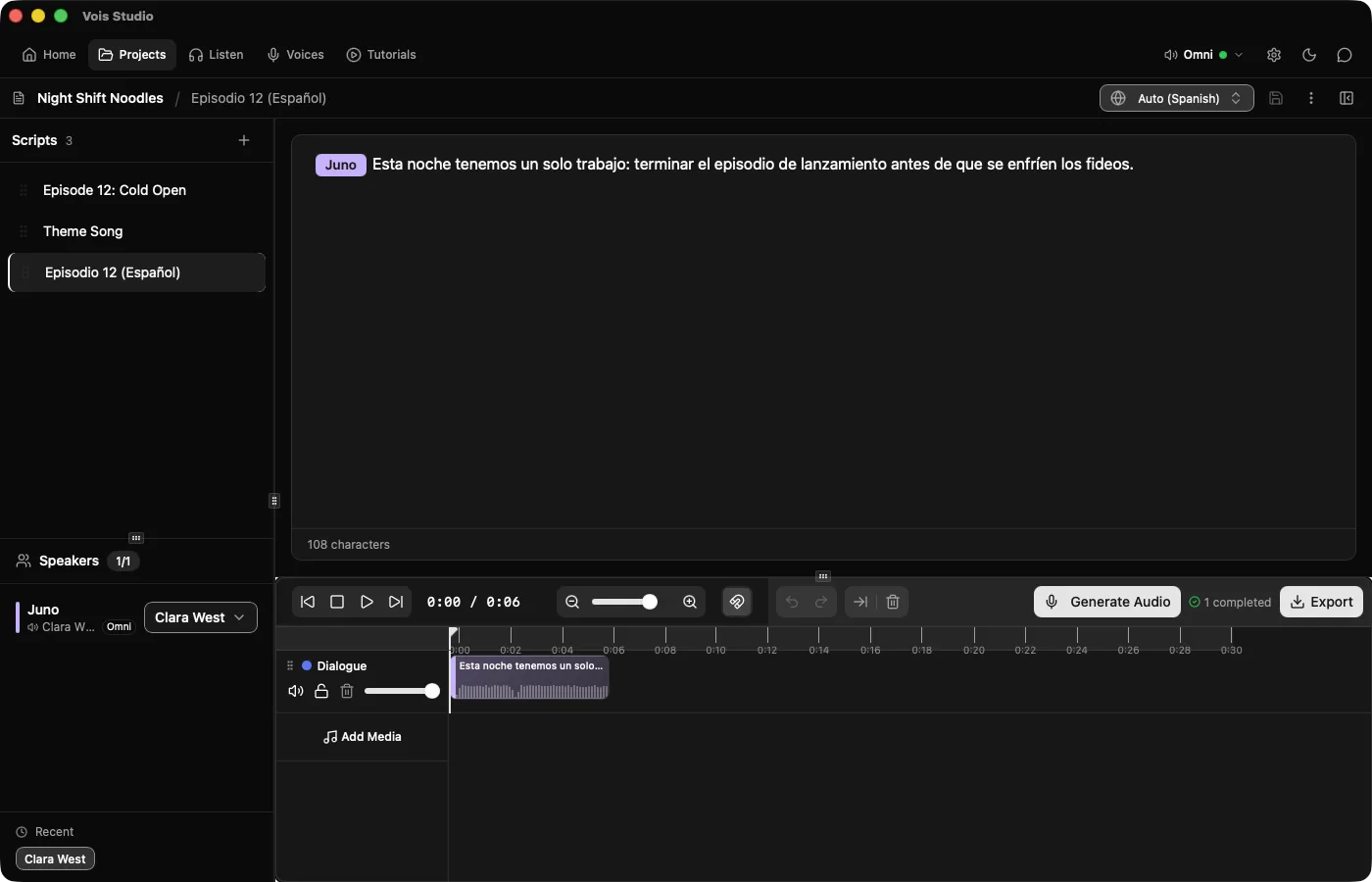
Generate Audio only remakes lines whose text changed, and unchanged lines keep their position, trims and fades, so fixing one line won't undo your alignment. Lock a line you're happy with (click the clip and press L) and Generate Audio keeps its take. More on the timeline: multi-track timeline editing.
Which export settings should I use?
Click Export on the timeline and choose the YouTube Video mastering profile: -14 LUFS, a -1 dBTP peak limit, AAC at 48 kHz. Use the same profile for every language so the level doesn't jump when a viewer switches track. With Loudness Normalization on, Vois Studio reaches the target within 0.3 LU, or tells you when a recording can't get there without going over the peak limit.
YouTube's help page asks for "a supported audio-only file format" but doesn't list the formats. If YouTube Studio won't take your file, export again with Custom and another Output Format (MP3, WAV, FLAC or AAC). Details on every profile: export presets guide.

How do I upload a track in YouTube Studio?
From YouTube Help, checked 20 October 2026:
- Sign in to YouTube Studio on your computer.
- In the left menu, select Languages.
- Click the video.
- Click Add Language and select the language.
- Next to Dub, click Add.
- Click Select file and choose your audio-only file.
- Click Publish.
To replace a track, open the same page and, under Audio, click Delete for that language, then upload the new file. The same Languages page is where you add a translated title and description, and localized thumbnails for long-form videos.
YouTube's automatic captions follow the original audio track only, so upload your own subtitles for each language.
What if my channel can't add audio tracks?
Publish a separate upload per language instead. Each one is a full video with its own mixed audio, title, description and thumbnail. That route also lets you translate text burned into the picture, which audio tracks can't change. Make the audio exactly as above; only the delivery differs.
Whichever route you take, YouTube has its own rules on disclosing realistic synthetic voices: YouTube AI voice disclosure rules.
Related
- The complete Vois Studio 2.6 guide
- Which Vois Studio voice engine should I use?
- YouTube video localization in 10 languages
- Export presets guide
- Multi-track timeline editing
Voice one language first, add it as a dub, and switch tracks in the player yourself before you make the rest.
The Vois Team